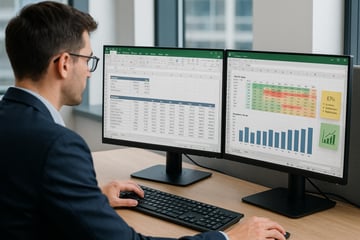
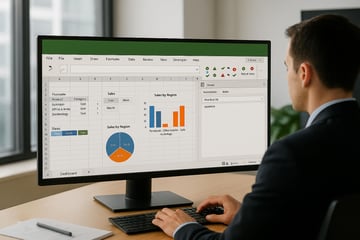
Designing data-driven dashboards helps visualise insights at a glance. This course develops skills in structuring Excel layouts, linking datasets, and applying formulas to build responsive dashboards. They will explore productivity tools that support collaborative work, document protection, and professional publishing.
Learning Outcomes:
Apply advanced formatting and layout techniques
Create and manage long documents with references
Automate tasks with macros and styles
Collaborate using review and editing tools
Use Copilot to generate summaries and streamline editing
Key Topics:
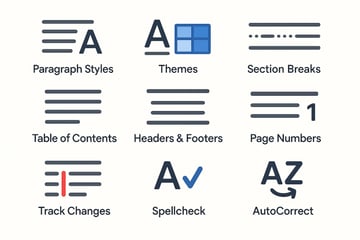
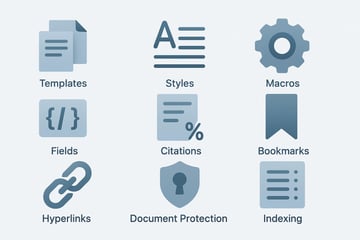
Advanced styles, templates, and section breaks
Indexing, referencing, and table of contents
Collaboration tools: track changes and comments
Macros, fields, and mail merge
Copilot capabilities for summarising and polishing text
Module 1. Revising Word Document Formatting
- Creating a Character Style
- Modify and Update a Character Style
- Creating a Paragraph Style
- Modify and Update a Paragraph Style
- Apply Multiple Column Layout
- Changing Column Width and Spacing
- Inserting/Removing Lines Between Columns
- Creating Watermarks
Module 2. Using Section Breaks
- Working with Section Break
- Creating Section Breaks
- Changing Page Orientation
- Changing Margins for a Section
- Apply Different Headers and Footers
- Apply First Page Header
- Insert Automatic Page Numbering
- Labs
Module 3. Using Table Features
- Apply AutoFormat/Style
- Changing Cell Margins
- Changing Text Direction
- Changing Text Alignment
- Repeating Heading Rows at Top of Each Page
- Setting Table Row to Break Across Pages
- Adding Table Formula
- Formatting Number Field
- Converting a Table into Text
- Converting Delimited Text To a Table
- Labs
Module 4. Working with Comments and Revisions
- Enabling Change Tracking
- Setting Change Tracking Options
- Disabling Change Tracking
- Comparing Documents
- Reviewing Tracked Changes
- Accepting/Rejecting All Changes
- Inserting Comments
- Managing Comments
- Viewing and Navigating Comments
- Labs
Module 5. Creating Master Documents
- Using a Master Document
- Inserting Subdocuments
- Collapsing/Expanding Subdocuments
- Unlinking Subdocuments
- Splitting and Merging Subdocuments
- Locking Subdocuments
- Opening Subdocuments
- Labs
Module 6. Creating a Table of Contents
- Using a Table of Contents
- Creating a Table of Contents
- Using Custom Styles
- Updating a Table of Contents
- Using Outline Levels
- Labs
Module 7. Creating an Index
- Creating an Index
- Creating Main Index Entries
- Creating Index Subentries
- Typing Index Entries
- Cross-Referencing Index Entries
- Generating an Index
- Updating an Index
- Labs
Module 8. Using Bookmarks, Captions and Footnotes
- Working with Bookmarks
- Creating Bookmarks
- Viewing Bookmarks
- Going to a Bookmark
- Cross-referencing to a Bookmark
- Deleting a Bookmark
- Inserting a Caption
- Inserting a Table of Figures
- Inserting a Cross-reference
- Inserting Notes
- Setting Note Options
- Viewing Notes
- Labs
Module 9. Using Mail Merge
- Working with Mail Merge
- Starting the Mail Merge
- Identifying the Main Document
- Creating a Recipient List
- Customizing Columns in a Recipient List
- Rearranging Columns in a Recipient List
- Saving a Recipient List
- Entering Records into a Recipient List
- Sorting Records to be Merged
- Highlighting Merge fields
- Inserting Merge Fields into a Document
- Previewing Merged Data
- Merging to a New Document
- Merging to the Printer
- Sending Email Messages
- Labs
Module 10. Linking/Embedding Objects
- Inserting a Hyperlink
- Display a Linked Object as an Icon
- Embed Data as an Object
- Updating a Link Breaking a Link
- Breaking a Link
- Labs
Module 11. Using Macros
- Recording a Macro
- Running a Macro
- Adding a Macro Button to a QAT
- Saving a Macro Enabled Document
- Deleting a Macro
- Labs
Module 12. Introduction to Copilot
- Overview of Copilot
- How Copilot can assist with Office tasks
Module 13. Copilot and Word 365
- Advanced document formatting
- Summarizes long documents
- Expands brief notes into detailed paragraphs
- Suggests improvements to enhance readability and clarity.





.png?width=50&name=Artificial%20Intelligence%20(AI).png)







/AI%20(5)-1.png?width=360&name=AI%20(5)-1.png)







































































-1.png?width=360&name=Server%20(4)-1.png)






/AI%20(6)-1-1.png?width=360&name=AI%20(6)-1-1.png)
/AI%20(8)-1.png?width=360&name=AI%20(8)-1.png)
-1.png?width=360&name=Automation%20RPA%20(2)-1.png)