*Important Note : Fees are subject to Singapore's prevailing Goods and Services Tax (GST).
1751241600000
60

Cloud & Infrastructure
Cybersecurity & Risk Management
Artificial Intelligence & Automation
Data Analytics & Data Science
Digital Skills & Office Productivity
Project Management & Agile
Software Development & IT Ops
Critical Core Skills
Maritime
Cloud & Infrastructure
Cybersecurity & Risk Management
Artificial Intelligence & Automation
Data Analytics & Data Science
Digital Skills & Office Productivity
Project Management & Agile
Software Development & IT Ops
Critical Core Skills
Maritime
 Microsoft Productivity Suite

Enrol now and save $0 on your course fee
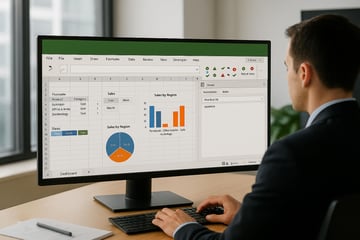
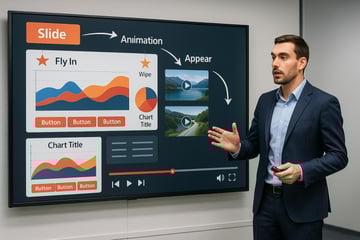
This course is designed to equip learners with advanced spreadsheet skills using Microsoft Excel. It focuses on enhancing productivity, improving data analysis, and producing professional reports. The module aligns with the ICDL Management Spreadsheets certification and is ideal for individuals seeking to manage complex data effectively in a business or administrative context.
Learning Outcomes:
Apply advanced formatting and analysis features in Excel 365
Apply best practices in data validation, protection, and auditing
Automate repetitive tasks using macros
Confidently use advanced spreadsheet features to manage and analyze data
Key Topics:
Advanced formatting, cell styles, and custom views
Date, logical, and lookup functions
Workbook protection and version management
Template development and macro basics
Module 1. Using Conditional and Custom Formats
Module 2. Using Templates
Module 3. Working with Databases
Module 4. Working with Advanced Filters
Module 5. Revising Charting Features
Module 6. Creating/Revising PivotTables
Module 7. Using Auditing Tools and Range Names
Module 8. Exporting and Importing Data
Module 9. Using Advanced Functions
Module 10. Using Scenarios
Module 11. Using Worksheet Protection
Module 12. Tracking and Merging Workbooks
Module 13. Recording Macros
We’re here to help — reach out anytime.
By submitting this form, you consent to be contacted via email and/or your mobile number regarding your enquiry. You consent to the collection, use, disclosure and processing of your personal data in accordance with our Personal Data Policy.




.png?width=50&name=Artificial%20Intelligence%20(AI).png)


/AdobeStock_230441943.jpeg?width=360&name=AdobeStock_230441943.jpeg)

/AdobeStock_737314510.jpeg?width=360&name=AdobeStock_737314510.jpeg)






/AI%20(5)-1.png?width=360&name=AI%20(5)-1.png)







































































-1.png?width=360&name=Server%20(4)-1.png)






/AI%20(6)-1-1.png?width=360&name=AI%20(6)-1-1.png)
/AI%20(8)-1.png?width=360&name=AI%20(8)-1.png)
-1.png?width=360&name=Automation%20RPA%20(2)-1.png)





















































![VMware vRealize Operations: Install, Configure, Manage [V8.6]](https://www.eservtraininghub.com/hs-fs/hubfs/331_result.jpg?width=360&name=331_result.jpg)
![VMware vRealize Automation - Install, Configure, Manage [V8.3]](https://www.eservtraininghub.com/hs-fs/hubfs/AI-Generated%20Media/Images/Automation%20system%20deploying%20infrastructure%20in%20realtime%20with%20robotic%20arms%20and%20config%20lines%20building%20digital%20components%20Blue%20enterprise%20tech%20setting.jpeg?width=360&name=Automation%20system%20deploying%20infrastructure%20in%20realtime%20with%20robotic%20arms%20and%20config%20lines%20building%20digital%20components%20Blue%20enterprise%20tech%20setting.jpeg)















































![VMware vSphere: Install, Configure, Manage [V8]](https://www.eservtraininghub.com/hs-fs/hubfs/756_result.jpg?width=360&name=756_result.jpg)









![VMware NSX: Install, Configure, Manage [V4.0]](https://www.eservtraininghub.com/hs-fs/hubfs/812_result.jpg?width=360&name=812_result.jpg)