*Important Note : Fees are subject to Singapore's prevailing Goods and Services Tax (GST).
1753660800000
60

Cloud & Infrastructure
Cybersecurity & Risk Management
Artificial Intelligence & Automation
Data Analytics & Data Science
Digital Skills & Office Productivity
Project Management & Agile
Software Development & IT Ops
Critical Core Skills
Maritime
Cloud & Infrastructure
Cybersecurity & Risk Management
Artificial Intelligence & Automation
Data Analytics & Data Science
Digital Skills & Office Productivity
Project Management & Agile
Software Development & IT Ops
Critical Core Skills
Maritime
 Microsoft Productivity Suite
Enrol now and save $0 on your course fee
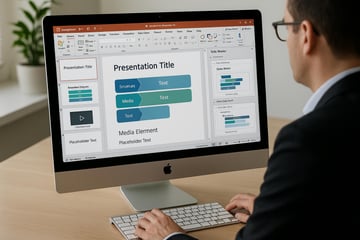
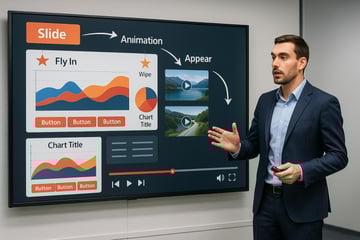
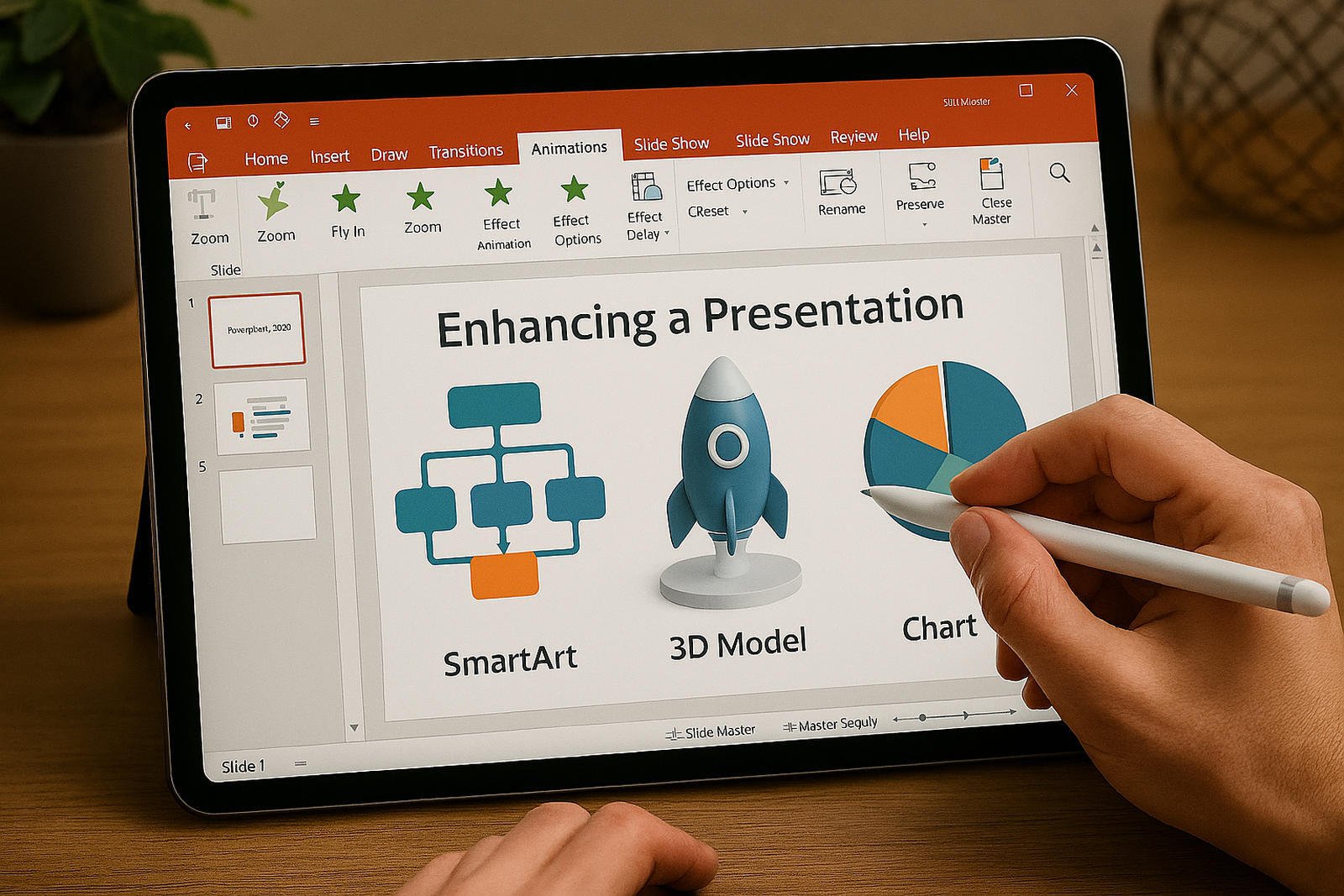
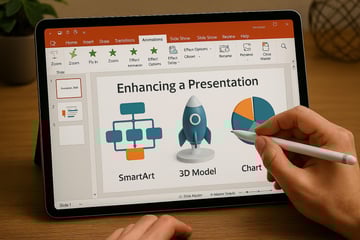
Clear visual communication is critical in professional environments. This course develops skills to create compelling presentations in PowerPoint, with a focus on layout, visual consistency, and effective use of animations and transitions. Participants will learn to create, edit, and deliver impactful presentations for business or training contexts.
Learning Outcomes:
Navigate PowerPoint and manage slide content
Apply design principles to enhance visual clarity
Use transitions and animations effectively
Insert charts, tables, and multimedia elements
Prepare and deliver presentations confidently
Key Topics:
Slide creation and layout management
Visual design and formatting tools
Animation sequences and timing
Charts, SmartArt, and media integration
Slideshow setup and presenter tools
Module 1. Exploring PowerPoint
Module 2. Using Basic Presentation Skills
Module 3. Working with Presentations
Module 4. Formatting Presentation Text
Module 5..Working wth Tables
Module 6. Using Graphic Images
Module 7. Add SmartArt Object
Module 8. Using Slide Sorter and Slide Show View
Module 9. Working with Drawing Objects
Module 10. Creating Basic Charts
Module 11. Adding Special Effects
We’re here to help — reach out anytime.
By submitting this form, you consent to be contacted via email and/or your mobile number regarding your enquiry. You consent to the collection, use, disclosure and processing of your personal data in accordance with our Personal Data Policy.




.png?width=50&name=Artificial%20Intelligence%20(AI).png)


/AdobeStock_230441943.jpeg?width=360&name=AdobeStock_230441943.jpeg)

/AdobeStock_737314510.jpeg?width=360&name=AdobeStock_737314510.jpeg)





/AI%20(5)-1.png?width=360&name=AI%20(5)-1.png)
































































-1.png?width=360&name=Server%20(4)-1.png)






/AI%20(6)-1-1.png?width=360&name=AI%20(6)-1-1.png)
/AI%20(8)-1.png?width=360&name=AI%20(8)-1.png)
-1.png?width=360&name=Automation%20RPA%20(2)-1.png)











































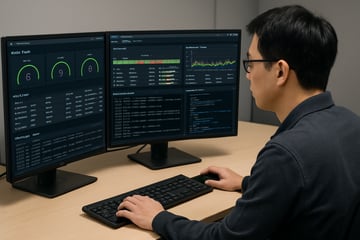




![VMware vRealize Operations: Install, Configure, Manage [V8.6]](https://www.eservtraininghub.com/hs-fs/hubfs/331_result.jpg?width=360&name=331_result.jpg)
![VMware vRealize Automation - Install, Configure, Manage [V8.3]](https://www.eservtraininghub.com/hs-fs/hubfs/AI-Generated%20Media/Images/Automation%20system%20deploying%20infrastructure%20in%20realtime%20with%20robotic%20arms%20and%20config%20lines%20building%20digital%20components%20Blue%20enterprise%20tech%20setting.jpeg?width=360&name=Automation%20system%20deploying%20infrastructure%20in%20realtime%20with%20robotic%20arms%20and%20config%20lines%20building%20digital%20components%20Blue%20enterprise%20tech%20setting.jpeg)












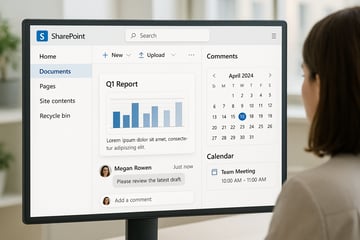























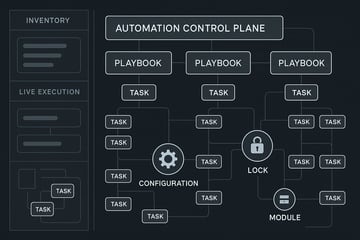









![VMware vSphere: Install, Configure, Manage [V8]](https://www.eservtraininghub.com/hs-fs/hubfs/756_result.jpg?width=360&name=756_result.jpg)







![VMware NSX: Install, Configure, Manage [V4.0]](https://www.eservtraininghub.com/hs-fs/hubfs/812_result.jpg?width=360&name=812_result.jpg)