*Important Note : Fees are subject to Singapore's prevailing Goods and Services Tax (GST).
1753660800000
60

Cloud & Infrastructure
Cybersecurity & Risk Management
Artificial Intelligence & Automation
Data Analytics & Data Science
Digital Skills & Office Productivity
Project Management & Agile
Software Development & IT Ops
Critical Core Skills
Maritime
Cloud & Infrastructure
Cybersecurity & Risk Management
Artificial Intelligence & Automation
Data Analytics & Data Science
Digital Skills & Office Productivity
Project Management & Agile
Software Development & IT Ops
Critical Core Skills
Maritime
 Microsoft Productivity Suite

Enrol now and save $0 on your course fee
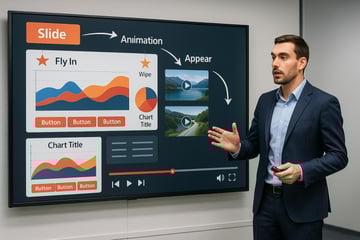
This course introduces participants to the essential and intermediate features of Microsoft Word for professional document creation. Participants will learn to create, format, and enhance text documents, incorporate tables and images, and manage document layout. The course builds confidence with practical skills to improve daily document production and editing efficiency.
Learning Outcomes:
Create and format professional Word documents
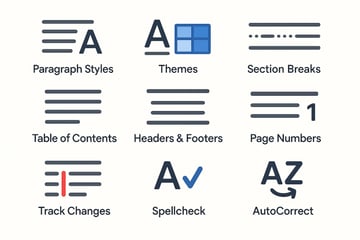
Apply styles, themes, bullets, and numbering
Insert and format tables, graphics, and headers/footers
Use spellcheck, Find & Replace, and document views
Print and prepare documents for distribution
Manage tables, page setup, and simple object drawing
Key Topics:
Basic editing, formatting, and alignment
Page layout, headers/footers, and printing
Table creation and formatting
Graphics and drawing tools
Spelling and grammar tools
Themes, bullets, and numbering
Module 1. Exploring Microsoft Word
Module 2. Document Views
Module 3. Editing Text
Module 4. Formatting Text
Module 5. Paragraphs and Indentation
Module 6. Bullets and Numbering
Module 7. Using Find and Replace
Module 8. Document Formatting & Printing
Module 9. Headers and Footers
Module 10. Working with Tables
Module 11. Inserting Graphics
We’re here to help — reach out anytime.
By submitting this form, you consent to be contacted via email and/or your mobile number regarding your enquiry. You consent to the collection, use, disclosure and processing of your personal data in accordance with our Personal Data Policy.




.png?width=50&name=Artificial%20Intelligence%20(AI).png)


/AdobeStock_230441943.jpeg?width=360&name=AdobeStock_230441943.jpeg)

/AdobeStock_737314510.jpeg?width=360&name=AdobeStock_737314510.jpeg)






/AI%20(5)-1.png?width=360&name=AI%20(5)-1.png)



































































-1.png?width=360&name=Server%20(4)-1.png)






/AI%20(6)-1-1.png?width=360&name=AI%20(6)-1-1.png)
/AI%20(8)-1.png?width=360&name=AI%20(8)-1.png)
-1.png?width=360&name=Automation%20RPA%20(2)-1.png)


















































![VMware vRealize Operations: Install, Configure, Manage [V8.6]](https://www.eservtraininghub.com/hs-fs/hubfs/331_result.jpg?width=360&name=331_result.jpg)
![VMware vRealize Automation - Install, Configure, Manage [V8.3]](https://www.eservtraininghub.com/hs-fs/hubfs/AI-Generated%20Media/Images/Automation%20system%20deploying%20infrastructure%20in%20realtime%20with%20robotic%20arms%20and%20config%20lines%20building%20digital%20components%20Blue%20enterprise%20tech%20setting.jpeg?width=360&name=Automation%20system%20deploying%20infrastructure%20in%20realtime%20with%20robotic%20arms%20and%20config%20lines%20building%20digital%20components%20Blue%20enterprise%20tech%20setting.jpeg)













































![VMware vSphere: Install, Configure, Manage [V8]](https://www.eservtraininghub.com/hs-fs/hubfs/756_result.jpg?width=360&name=756_result.jpg)







![VMware NSX: Install, Configure, Manage [V4.0]](https://www.eservtraininghub.com/hs-fs/hubfs/812_result.jpg?width=360&name=812_result.jpg)