*Important Note : Fees are subject to Singapore's prevailing Goods and Services Tax (GST).
1752192000000
60

Cloud & Infrastructure
Cybersecurity & Risk Management
Artificial Intelligence & Automation
Data Analytics & Data Science
Digital Skills & Office Productivity
Project Management & Agile
Software Development & IT Ops
Critical Core Skills
Maritime
Cloud & Infrastructure
Cybersecurity & Risk Management
Artificial Intelligence & Automation
Data Analytics & Data Science
Digital Skills & Office Productivity
Project Management & Agile
Software Development & IT Ops
Critical Core Skills
Maritime
 Microsoft Productivity Suite

Enrol now and save $0 on your course fee
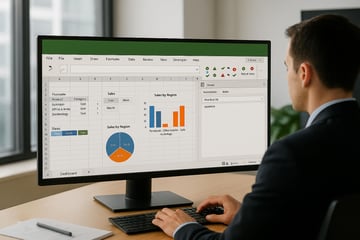
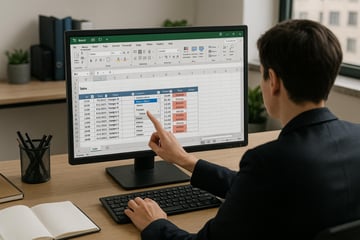
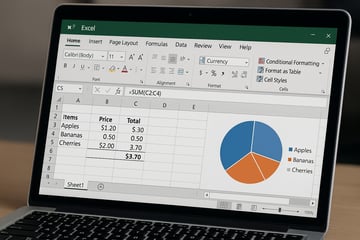
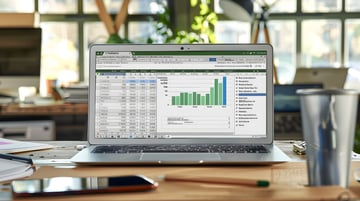
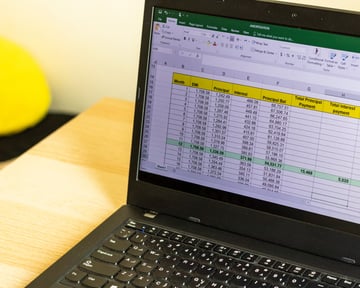
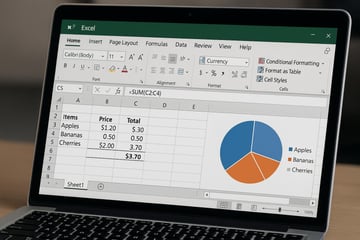
Transform raw data into actionable insights with automated Excel dashboards. This course guides participants in creating a dynamic dashboard that updates automatically when data changes, using Excel features like tables, PivotTables, charts, slicers, and formulas.
Learning Outcomes:
Apply statistical and logical functions to summarise data
Create dynamic dashboards using PivotTables and charts
Use macros to automate data updates and interactions
Build user-friendly controls to filter and display insights
Design dashboards tailored to business requirements
Key Topics:
Range names, formula auditing, and logical functions
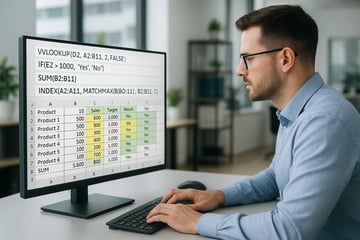
VLOOKUP, HLOOKUP, and MATCH/INDEX usage
PivotTable design and dynamic chart creation
Macro recording and assignment to dashboard controls
Interactive dashboard elements like checkboxes and combo boxes
Module 1. Auditing Tools and Range Name
Module 2. Statistical and Logical Functions
Module 3. Lookup and Reference Formulas
Module 4. Conditional Formatting
Module 5. Creating PivotTables
Module 6. Recording Macros
Module 7. Using Macros Button
Module 8. Working with Dashboard
We’re here to help — reach out anytime.
By submitting this form, you consent to be contacted via email and/or your mobile number regarding your enquiry. You consent to the collection, use, disclosure and processing of your personal data in accordance with our Personal Data Policy.




.png?width=50&name=Artificial%20Intelligence%20(AI).png)


/AdobeStock_230441943.jpeg?width=360&name=AdobeStock_230441943.jpeg)

/AdobeStock_737314510.jpeg?width=360&name=AdobeStock_737314510.jpeg)






/AI%20(5)-1.png?width=360&name=AI%20(5)-1.png)
































































-1.png?width=360&name=Server%20(4)-1.png)






/AI%20(6)-1-1.png?width=360&name=AI%20(6)-1-1.png)
/AI%20(8)-1.png?width=360&name=AI%20(8)-1.png)
-1.png?width=360&name=Automation%20RPA%20(2)-1.png)



















































![VMware vRealize Operations: Install, Configure, Manage [V8.6]](https://www.eservtraininghub.com/hs-fs/hubfs/331_result.jpg?width=360&name=331_result.jpg)
![VMware vRealize Automation - Install, Configure, Manage [V8.3]](https://www.eservtraininghub.com/hs-fs/hubfs/AI-Generated%20Media/Images/Automation%20system%20deploying%20infrastructure%20in%20realtime%20with%20robotic%20arms%20and%20config%20lines%20building%20digital%20components%20Blue%20enterprise%20tech%20setting.jpeg?width=360&name=Automation%20system%20deploying%20infrastructure%20in%20realtime%20with%20robotic%20arms%20and%20config%20lines%20building%20digital%20components%20Blue%20enterprise%20tech%20setting.jpeg)












































![VMware vSphere: Install, Configure, Manage [V8]](https://www.eservtraininghub.com/hs-fs/hubfs/756_result.jpg?width=360&name=756_result.jpg)







![VMware NSX: Install, Configure, Manage [V4.0]](https://www.eservtraininghub.com/hs-fs/hubfs/812_result.jpg?width=360&name=812_result.jpg)