*Important Note : Fees are subject to Singapore's prevailing Goods and Services Tax (GST).
1752451200000
60

Cloud & Infrastructure
Cybersecurity & Risk Management
Artificial Intelligence & Automation
Data Analytics & Data Science
Digital Skills & Office Productivity
Project Management & Agile
Software Development & IT Ops
Critical Core Skills
Maritime
Cloud & Infrastructure
Cybersecurity & Risk Management
Artificial Intelligence & Automation
Data Analytics & Data Science
Digital Skills & Office Productivity
Project Management & Agile
Software Development & IT Ops
Critical Core Skills
Maritime
 Microsoft Productivity Suite
Enrol now and save $0 on your course fee
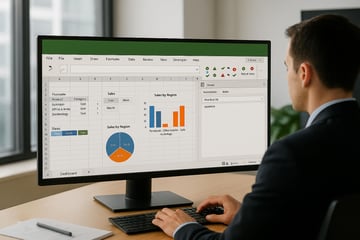
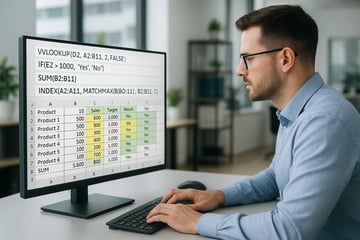
Automation reduces repetitive tasks and enhances accuracy. This course teaches participants to build custom VBA solutions that integrate Excel’s functionality with intelligent scripting. This course supports professionals producing reports, manuals, and other complex outputs with precision.
Learning Outcomes:
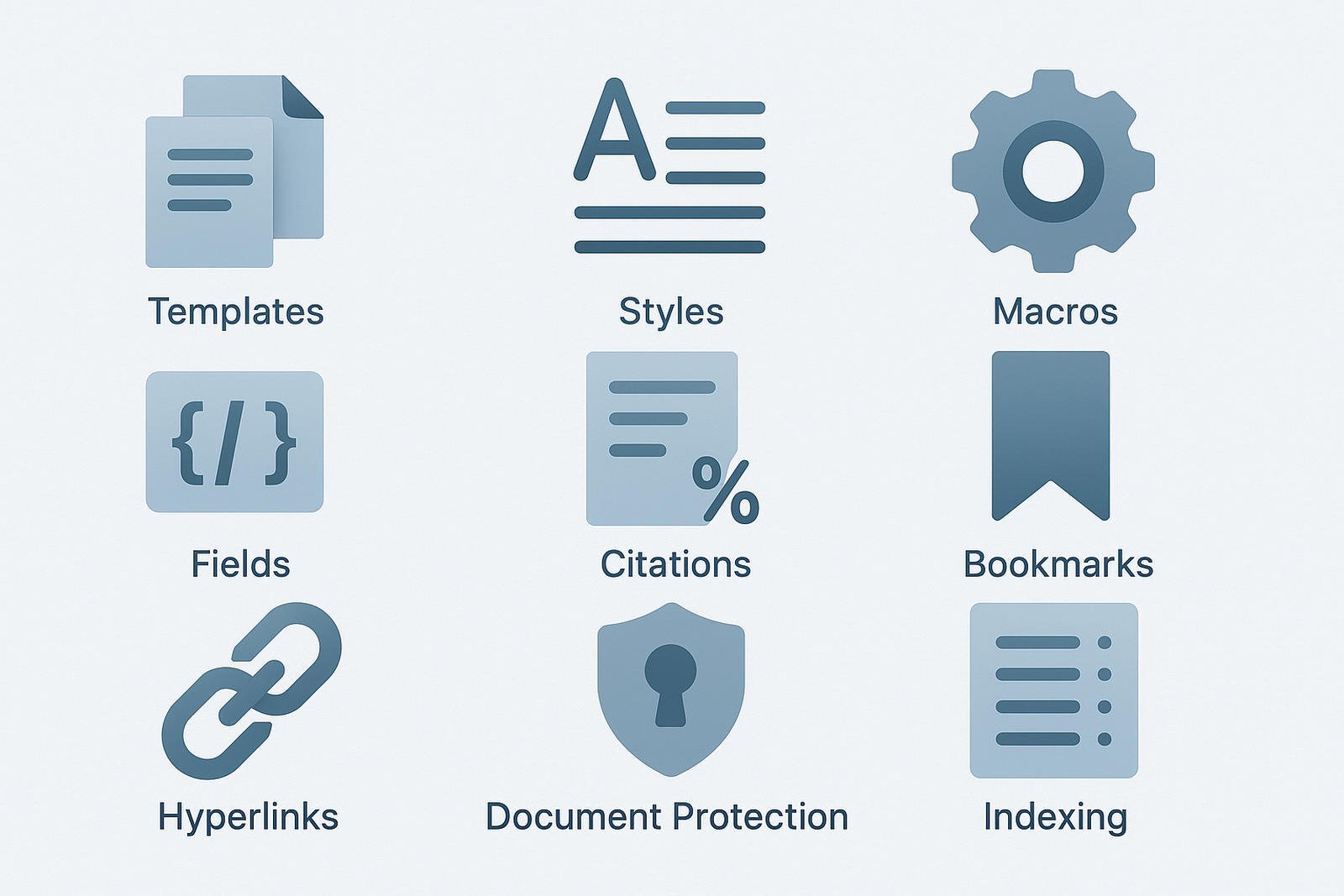
Build and customise templates for consistency
Use advanced table and graphic formatting tools
Automate document elements using fields and macros
Manage references, citations, and footnotes
Protect and finalise documents for publishing
Key Topics:
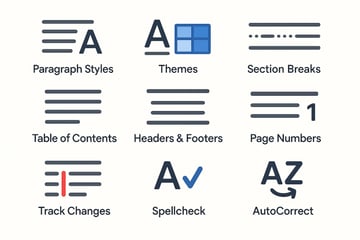
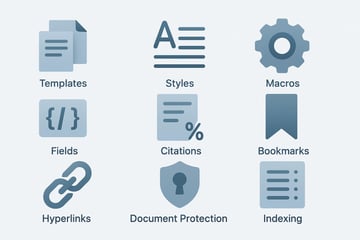
Advanced styles and templates
Cross-references, bookmarks, and hyperlinks
Indexing, citations, and bibliography tools
Fields, forms, and macros
Document protection and finalisation
Module 1. Using Style
Module 2. Creating Master Documents
Module 3. Creating a Table of Contents
Module 4. Creating an Index
Module 5. Using Bookmarks, Captions and Footnotes
Module 6. Using Mail Merge
Module 7. Working with Comments and Revisions
Module 8. Linking/Embedding Objects
Module 9. Using Macros
We’re here to help — reach out anytime.
By submitting this form, you consent to be contacted via email and/or your mobile number regarding your enquiry. You consent to the collection, use, disclosure and processing of your personal data in accordance with our Personal Data Policy.



.png?width=50&name=Artificial%20Intelligence%20(AI).png)


/AdobeStock_230441943.jpeg?width=360&name=AdobeStock_230441943.jpeg)

/AdobeStock_737314510.jpeg?width=360&name=AdobeStock_737314510.jpeg)






/AI%20(5)-1.png?width=360&name=AI%20(5)-1.png)































































-1.png?width=360&name=Server%20(4)-1.png)





/AI%20(6)-1-1.png?width=360&name=AI%20(6)-1-1.png)
/AI%20(8)-1.png?width=360&name=AI%20(8)-1.png)
-1.png?width=360&name=Automation%20RPA%20(2)-1.png)

















































![VMware vRealize Operations: Install, Configure, Manage [V8.6]](https://www.eservtraininghub.com/hs-fs/hubfs/331_result.jpg?width=360&name=331_result.jpg)
![VMware vRealize Automation - Install, Configure, Manage [V8.3]](https://www.eservtraininghub.com/hs-fs/hubfs/AI-Generated%20Media/Images/Automation%20system%20deploying%20infrastructure%20in%20realtime%20with%20robotic%20arms%20and%20config%20lines%20building%20digital%20components%20Blue%20enterprise%20tech%20setting.jpeg?width=360&name=Automation%20system%20deploying%20infrastructure%20in%20realtime%20with%20robotic%20arms%20and%20config%20lines%20building%20digital%20components%20Blue%20enterprise%20tech%20setting.jpeg)









































![VMware vSphere: Install, Configure, Manage [V8]](https://www.eservtraininghub.com/hs-fs/hubfs/756_result.jpg?width=360&name=756_result.jpg)







![VMware NSX: Install, Configure, Manage [V4.0]](https://www.eservtraininghub.com/hs-fs/hubfs/812_result.jpg?width=360&name=812_result.jpg)