*Important Note : Fees are subject to Singapore's prevailing Goods and Services Tax (GST).
1752451200000
60

Cloud & Infrastructure
Cybersecurity & Risk Management
Artificial Intelligence & Automation
Data Analytics & Data Science
Digital Skills & Office Productivity
Project Management & Agile
Software Development & IT Ops
Critical Core Skills
Maritime
Cloud & Infrastructure
Cybersecurity & Risk Management
Artificial Intelligence & Automation
Data Analytics & Data Science
Digital Skills & Office Productivity
Project Management & Agile
Software Development & IT Ops
Critical Core Skills
Maritime
 Microsoft Productivity Suite

Enrol now and save $0 on your course fee
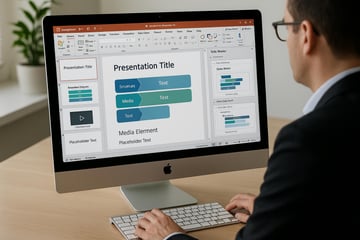
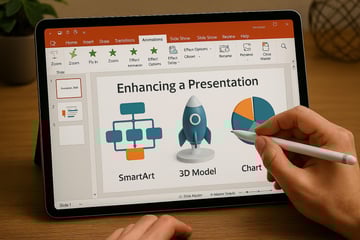
Slide design can make or break a presentation. This course enables participants to apply advanced formatting, layout, and multimedia techniques to create high-impact visual communications. They will explore dynamic slide design, interactive content, and Copilot's AI-driven tools for crafting impactful presentations.
Learning Outcomes:
Customise slide designs using advanced formatting
Use Microsoft Copilot to automate content creation
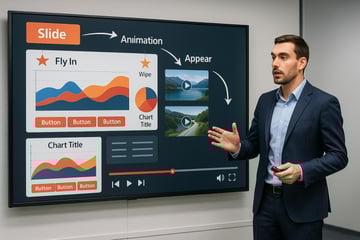
Integrate video, animation, and transitions effectively
Apply slide masters and reusable templates
Optimise slide shows for diverse audiences
Key Topics:
Advanced PowerPoint 365 capabilities
Copilot for intelligent content refinement
Multimedia and interactive slide elements
Presentation structure using slide masters
Audience targeting and delivery settings
Module 1. Customizing Presentations
Module 2. Editing Presentation Masters
Module 3. Drawing Objects
Module 4.Graphics
Module 5. SmartArt
Module 6. Adding Animation Scheme
Module 7. Setting Up the Slide Show
Module 8. Expanding a Slide Show
Module 9. Creating Custom Charts
Module 10. Exporting Outlines and Slides
Module 11: Introduction to Copilot
Module 12: Copilot and PowerPoint 365
We’re here to help — reach out anytime.
By submitting this form, you consent to be contacted via email and/or your mobile number regarding your enquiry. You consent to the collection, use, disclosure and processing of your personal data in accordance with our Personal Data Policy.




.png?width=50&name=Artificial%20Intelligence%20(AI).png)


/AdobeStock_230441943.jpeg?width=360&name=AdobeStock_230441943.jpeg)

/AdobeStock_737314510.jpeg?width=360&name=AdobeStock_737314510.jpeg)






/AI%20(5)-1.png?width=360&name=AI%20(5)-1.png)


































































-1.png?width=360&name=Server%20(4)-1.png)





/AI%20(6)-1-1.png?width=360&name=AI%20(6)-1-1.png)
/AI%20(8)-1.png?width=360&name=AI%20(8)-1.png)
-1.png?width=360&name=Automation%20RPA%20(2)-1.png)















































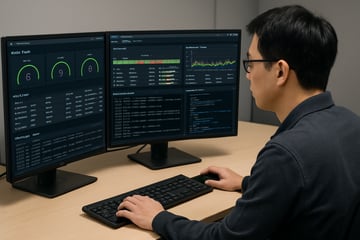




![VMware vRealize Operations: Install, Configure, Manage [V8.6]](https://www.eservtraininghub.com/hs-fs/hubfs/331_result.jpg?width=360&name=331_result.jpg)
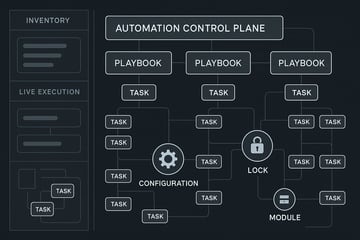
![VMware vRealize Automation - Install, Configure, Manage [V8.3]](https://www.eservtraininghub.com/hs-fs/hubfs/AI-Generated%20Media/Images/Automation%20system%20deploying%20infrastructure%20in%20realtime%20with%20robotic%20arms%20and%20config%20lines%20building%20digital%20components%20Blue%20enterprise%20tech%20setting.jpeg?width=360&name=Automation%20system%20deploying%20infrastructure%20in%20realtime%20with%20robotic%20arms%20and%20config%20lines%20building%20digital%20components%20Blue%20enterprise%20tech%20setting.jpeg)













































![VMware vSphere: Install, Configure, Manage [V8]](https://www.eservtraininghub.com/hs-fs/hubfs/756_result.jpg?width=360&name=756_result.jpg)







![VMware NSX: Install, Configure, Manage [V4.0]](https://www.eservtraininghub.com/hs-fs/hubfs/812_result.jpg?width=360&name=812_result.jpg)