*Important Note : Fees are subject to Singapore's prevailing Goods and Services Tax (GST).
1752192000000
60

Cloud & Infrastructure
Cybersecurity & Risk Management
Artificial Intelligence & Automation
Data Analytics & Data Science
Digital Skills & Office Productivity
Project Management & Agile
Software Development & IT Ops
Critical Core Skills
Maritime
Cloud & Infrastructure
Cybersecurity & Risk Management
Artificial Intelligence & Automation
Data Analytics & Data Science
Digital Skills & Office Productivity
Project Management & Agile
Software Development & IT Ops
Critical Core Skills
Maritime
 Microsoft Productivity Suite

Enrol now and save $0 on your course fee
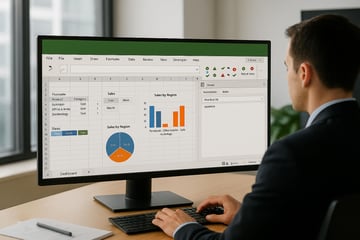
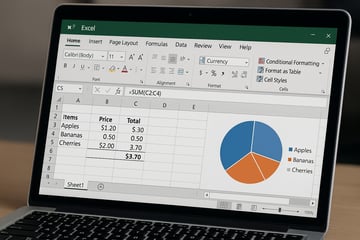
Data analytics supports better decision-making—but only if it’s clear and actionable. This course prepares participants to structure, analyse, and communicate data insights effectively using Microsoft Excel. They will sharpen their analysis skills through hands-on projects.
Learning Outcomes:
Understand Power Apps structure and use cases
Build canvas apps with controls and forms
Connect apps to data sources like SharePoint and Excel
Publish and share apps within Microsoft 365
Key Topics:
Power Apps interface and control types
App logic, navigation, and user input handling
Data connectors and integration options
App publishing and access control
Module 1: An Introduction to Power Apps
Let's get started with an introduction to Microsoft Power Apps. Traditionally building customised solutions for a business involved using a coding language to build an application from scratch. Typically, these solutions could often only be used within the business, making external use of the application a large hurdle to overcome. With PowerApps we can now not only easily build solutions, but we can also share them with users in our business. Deployment takes seconds and you could by testing your own app on your phone in no time. This module will overview the features of Power Apps, its benefits to a business and the variety of ways you can build and access your apps on different devices.
Lessons
Module 2: Getting Started with Power Apps
To begin our journey through the Power Apps product, we will begin by looking at some of the templates that are available to view and edit. Microsoft's templates are a good starting point to discover what the product is capable off and how it can be achieved. We will also take the chance to have a tour of the editor so that students are familiar with the interface that they will be using during the course session. We will then build our first app from a static data source, showing students how to test their changes in the app instantly without the need to publish. We will also discuss how to configure your apps settings and how to access the app once it has been saved and shared.
Lessons
Module 3: Branding and Media
Lessons
Module 4: Power Apps Controls
So far in the course, we would have covered the basics of adding, editing and removing controls from our applications. The drive behind this module is to provide more depth on the categories of controls which can be used on a form. Your instructor will take you through each control and discuss its purpose and configuration. Tackling the wide selection of controls will help students recognise when to use the right control.
Lessons
Module 5: Data Sources and Logic
To help maintain and view essential business information, organisations often have a diverse selection of locations to keep different types of data. This could range from databases to file storage locations. Power Apps offers connections to a wide selection of data sources. We will show students to build their PowerApps to bring in data from a variety of sources as well as how they can utilise the common data source, a storage location unique to PowerApps.
Lessons
Module 6: Model-Driven Apps
Module one to five discussed how to work with the original type of Power Apps known as a Canvas App, Microsoft have now introduced a second type of app known as a model-driven app. Model driven apps involve a different development process to canvas apps. We will review this development process during this module.
Model-Driven apps can be quicker to build than canvas apps, but they are less customisable and typically have a higher cost, knowing which type of app to use is not always a simple decision, we will show you the pros and cons of each.
Lessons
We’re here to help — reach out anytime.
By submitting this form, you consent to be contacted via email and/or your mobile number regarding your enquiry. You consent to the collection, use, disclosure and processing of your personal data in accordance with our Personal Data Policy.




.png?width=50&name=Artificial%20Intelligence%20(AI).png)


/AdobeStock_230441943.jpeg?width=360&name=AdobeStock_230441943.jpeg)

/AdobeStock_737314510.jpeg?width=360&name=AdobeStock_737314510.jpeg)






/AI%20(5)-1.png?width=360&name=AI%20(5)-1.png)






























































-1.png?width=360&name=Server%20(4)-1.png)





/AI%20(6)-1-1.png?width=360&name=AI%20(6)-1-1.png)
/AI%20(8)-1.png?width=360&name=AI%20(8)-1.png)
-1.png?width=360&name=Automation%20RPA%20(2)-1.png)





















































![VMware vRealize Operations: Install, Configure, Manage [V8.6]](https://www.eservtraininghub.com/hs-fs/hubfs/331_result.jpg?width=360&name=331_result.jpg)
![VMware vRealize Automation - Install, Configure, Manage [V8.3]](https://www.eservtraininghub.com/hs-fs/hubfs/AI-Generated%20Media/Images/Automation%20system%20deploying%20infrastructure%20in%20realtime%20with%20robotic%20arms%20and%20config%20lines%20building%20digital%20components%20Blue%20enterprise%20tech%20setting.jpeg?width=360&name=Automation%20system%20deploying%20infrastructure%20in%20realtime%20with%20robotic%20arms%20and%20config%20lines%20building%20digital%20components%20Blue%20enterprise%20tech%20setting.jpeg)













































![VMware vSphere: Install, Configure, Manage [V8]](https://www.eservtraininghub.com/hs-fs/hubfs/756_result.jpg?width=360&name=756_result.jpg)









![VMware NSX: Install, Configure, Manage [V4.0]](https://www.eservtraininghub.com/hs-fs/hubfs/812_result.jpg?width=360&name=812_result.jpg)