*Important Note : Fees are subject to Singapore's prevailing Goods and Services Tax (GST).
1752192000000
60

Cloud & Infrastructure
Cybersecurity & Risk Management
Artificial Intelligence & Automation
Data Analytics & Data Science
Digital Skills & Office Productivity
Project Management & Agile
Software Development & IT Ops
Critical Core Skills
Maritime
Cloud & Infrastructure
Cybersecurity & Risk Management
Artificial Intelligence & Automation
Data Analytics & Data Science
Digital Skills & Office Productivity
Project Management & Agile
Software Development & IT Ops
Critical Core Skills
Maritime
 Microsoft Productivity Suite

Enrol now and save $0 on your course fee
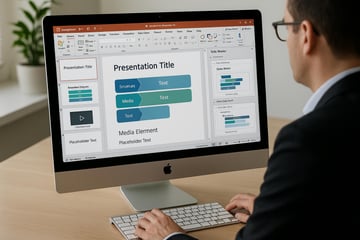
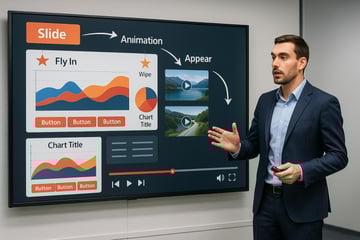
Creating a visually persuasive message is a vital workplace skill. This course guides participants through the design and delivery of impactful presentations using Microsoft PowerPoint 365’s latest tools and features. The course covers essential design techniques, layout skills, and multimedia integration for business or academic purposes.
Learning Outcomes:
Understand the PowerPoint 365 interface and tools
Create well-structured slide content
Apply consistent formatting and visual design
Insert images, videos, and audio for engagement
Deliver and manage live presentations effectively
Key Topics:
PowerPoint 365 ribbon and workspace features
Text formatting and layout design
Inserting and formatting images, charts, and media
Transitions, animations, and timing controls
Presentation delivery tools and settings
Exam Details
This course is designed to build participants’ understanding of key concepts and competencies aligned with the ICDL Presentation certification.
The certification evaluates practical ability in creating, editing, and delivering professional presentations using standard presentation software. It is suited for individuals seeking to validate workplace-ready digital presentation skills.
Topics covered include slide formatting, text editing, chart creation, image insertion, animation, transitions, and presentation output. The course supports preparation for the practice-based ICDL exam in presentations.
To maximise success, participants are strongly encouraged to complement the course with additional self-study, revision of course materials, and dedicated practice before attempting the exam.
Module 1. Exploring PowerPoint
Module 2. Using Basic Presentation Skills
Module 3. Working with Presentations
Module 4. Editing and Proofing Text
Module 5. Formatting Presentation Text
Module 6. Formatting Bullets and Numbers
Module 7. Creating Basic Table
Module 8. Using Graphic Images
Module 9. Using SmartArt
Module 10. Working with Slides
Module 11. Working with Drawn Objects
Module 12. Creating Charts
Module 13. Adding Special Effects
Module 14. Page Setup
Module 15. Using Slide Show View
We’re here to help — reach out anytime.
By submitting this form, you consent to be contacted via email and/or your mobile number regarding your enquiry. You consent to the collection, use, disclosure and processing of your personal data in accordance with our Personal Data Policy.




.png?width=50&name=Artificial%20Intelligence%20(AI).png)


/AdobeStock_230441943.jpeg?width=360&name=AdobeStock_230441943.jpeg)

/AdobeStock_737314510.jpeg?width=360&name=AdobeStock_737314510.jpeg)






/AI%20(5)-1.png?width=360&name=AI%20(5)-1.png)





























































-1.png?width=360&name=Server%20(4)-1.png)





/AI%20(6)-1-1.png?width=360&name=AI%20(6)-1-1.png)
/AI%20(8)-1.png?width=360&name=AI%20(8)-1.png)
-1.png?width=360&name=Automation%20RPA%20(2)-1.png)
















































![VMware vRealize Operations: Install, Configure, Manage [V8.6]](https://www.eservtraininghub.com/hs-fs/hubfs/331_result.jpg?width=360&name=331_result.jpg)
![VMware vRealize Automation - Install, Configure, Manage [V8.3]](https://www.eservtraininghub.com/hs-fs/hubfs/AI-Generated%20Media/Images/Automation%20system%20deploying%20infrastructure%20in%20realtime%20with%20robotic%20arms%20and%20config%20lines%20building%20digital%20components%20Blue%20enterprise%20tech%20setting.jpeg?width=360&name=Automation%20system%20deploying%20infrastructure%20in%20realtime%20with%20robotic%20arms%20and%20config%20lines%20building%20digital%20components%20Blue%20enterprise%20tech%20setting.jpeg)







































![VMware vSphere: Install, Configure, Manage [V8]](https://www.eservtraininghub.com/hs-fs/hubfs/756_result.jpg?width=360&name=756_result.jpg)






![VMware NSX: Install, Configure, Manage [V4.0]](https://www.eservtraininghub.com/hs-fs/hubfs/812_result.jpg?width=360&name=812_result.jpg)