*Important Note : Fees are subject to Singapore's prevailing Goods and Services Tax (GST).
1752451200000
60

Cloud & Infrastructure
Cybersecurity & Risk Management
Artificial Intelligence & Automation
Data Analytics & Data Science
Digital Skills & Office Productivity
Project Management & Agile
Software Development & IT Ops
Critical Core Skills
Maritime
Cloud & Infrastructure
Cybersecurity & Risk Management
Artificial Intelligence & Automation
Data Analytics & Data Science
Digital Skills & Office Productivity
Project Management & Agile
Software Development & IT Ops
Critical Core Skills
Maritime
 Creative and Design
Enrol now and save $0 on your course fee
Working with data is essential—but understanding it is transformative. This course equips participants with foundational skills in data analysis, focusing on statistical techniques, data wrangling, and business context. They will build confidence through practical, problem-solving exercises.
Learning Outcomes:
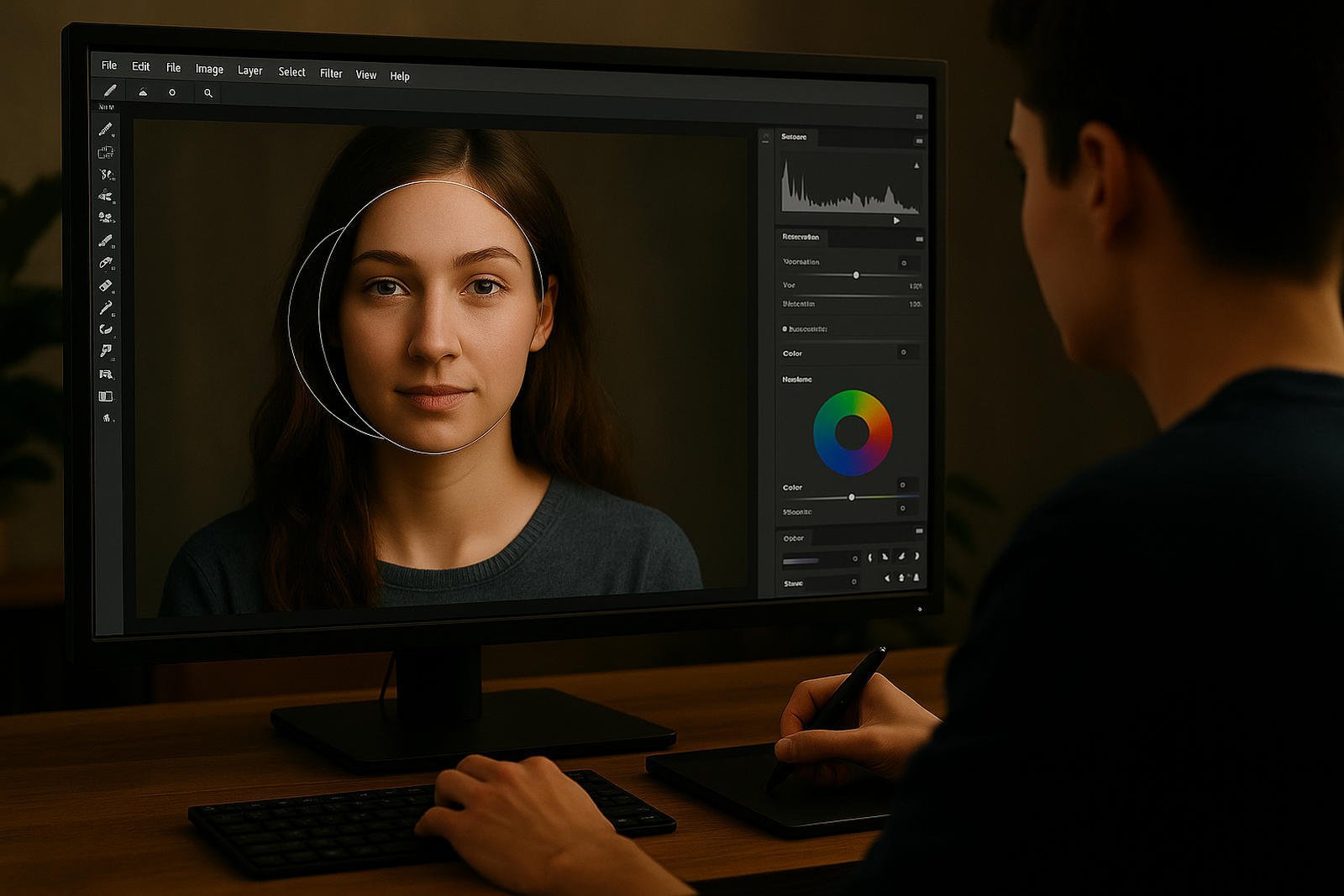
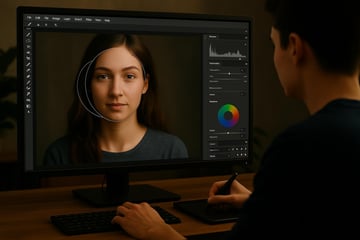
Understand Photoshop’s interface and image editing fundamentals
Apply adjustments, filters, and retouching tools effectively
Use layers, masks, and selections for non-destructive editing
Create text, shapes, and layouts for digital media
Key Topics:
Photoshop workspace and tool navigation
Image resolution, cropping, and resizing
Adjustment layers, filters, and effects
Layer styles, masks, and compositing techniques
Lesson 1. Introduction to Photoshop
Lesson 2. Photoshop Settings
Lesson 3. Selection Techniques
Lesson 4. Image Transformation
Lesson 5. Working with Layers
Lesson 6. Effects And Filters
Lesson 7. Text and Drawing Tools
Lesson 8. Painting Tools
We’re here to help — reach out anytime.
By submitting this form, you consent to be contacted via email and/or your mobile number regarding your enquiry. You consent to the collection, use, disclosure and processing of your personal data in accordance with our Personal Data Policy.




.png?width=50&name=Artificial%20Intelligence%20(AI).png)


/AdobeStock_230441943.jpeg?width=360&name=AdobeStock_230441943.jpeg)

/AdobeStock_737314510.jpeg?width=360&name=AdobeStock_737314510.jpeg)






/AI%20(5)-1.png?width=360&name=AI%20(5)-1.png)


































































-1.png?width=360&name=Server%20(4)-1.png)





/AI%20(6)-1-1.png?width=360&name=AI%20(6)-1-1.png)
/AI%20(8)-1.png?width=360&name=AI%20(8)-1.png)
-1.png?width=360&name=Automation%20RPA%20(2)-1.png)


















































![VMware vRealize Operations: Install, Configure, Manage [V8.6]](https://www.eservtraininghub.com/hs-fs/hubfs/331_result.jpg?width=360&name=331_result.jpg)
![VMware vRealize Automation - Install, Configure, Manage [V8.3]](https://www.eservtraininghub.com/hs-fs/hubfs/AI-Generated%20Media/Images/Automation%20system%20deploying%20infrastructure%20in%20realtime%20with%20robotic%20arms%20and%20config%20lines%20building%20digital%20components%20Blue%20enterprise%20tech%20setting.jpeg?width=360&name=Automation%20system%20deploying%20infrastructure%20in%20realtime%20with%20robotic%20arms%20and%20config%20lines%20building%20digital%20components%20Blue%20enterprise%20tech%20setting.jpeg)










































![VMware vSphere: Install, Configure, Manage [V8]](https://www.eservtraininghub.com/hs-fs/hubfs/756_result.jpg?width=360&name=756_result.jpg)





![VMware NSX: Install, Configure, Manage [V4.0]](https://www.eservtraininghub.com/hs-fs/hubfs/812_result.jpg?width=360&name=812_result.jpg)