*Important Note : Fees are subject to Singapore's prevailing Goods and Services Tax (GST).
1753574400000
60

Cloud & Infrastructure
Cybersecurity & Risk Management
Artificial Intelligence & Automation
Data Analytics & Data Science
Digital Skills & Office Productivity
Project Management & Agile
Software Development & IT Ops
Critical Core Skills
Maritime
Cloud & Infrastructure
Cybersecurity & Risk Management
Artificial Intelligence & Automation
Data Analytics & Data Science
Digital Skills & Office Productivity
Project Management & Agile
Software Development & IT Ops
Critical Core Skills
Maritime
 Microsoft Productivity Suite
Enrol now and save $0 on your course fee
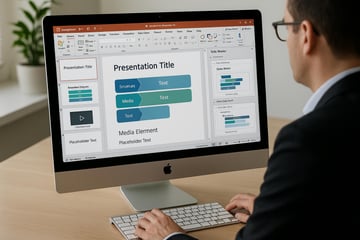
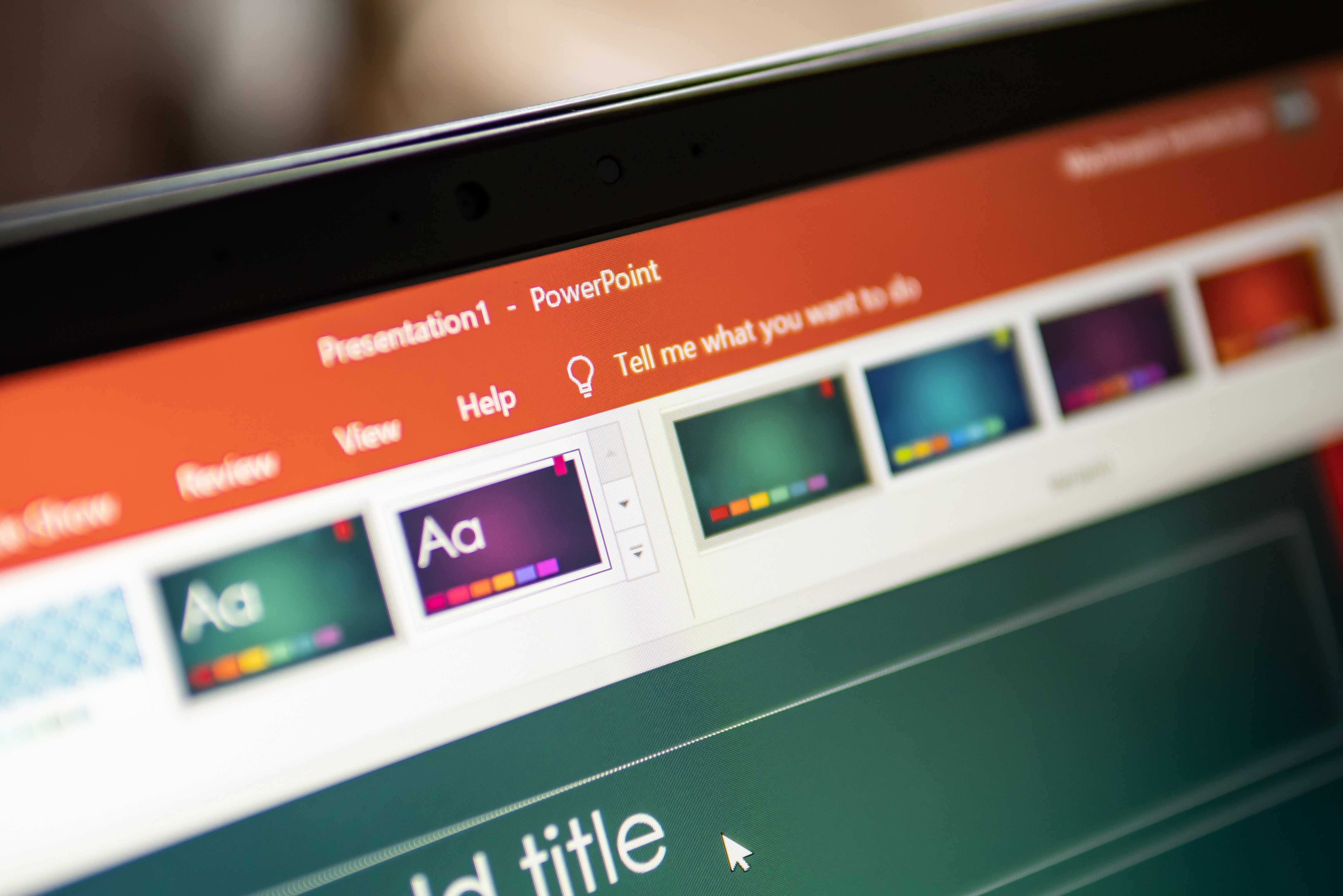
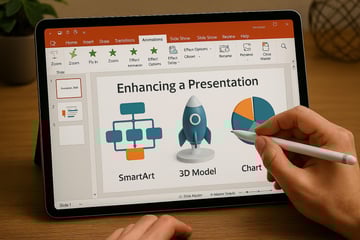
Presentations are crucial in many business settings and serve as a fundamental tool for communication. The method of presenting information greatly influences its understanding by the target audience. This two-day, instructor-led course will equip participants with the skills to utilize the advanced features of Microsoft PowerPoint 365 in their presentations. They will learn to customize slide layouts, work with master slides, design custom charts for slides creation.
Learning Outcomes:
Customise themes and templates for brand consistency
Use slide masters and layouts for efficient design
Embed multimedia and interactive elements
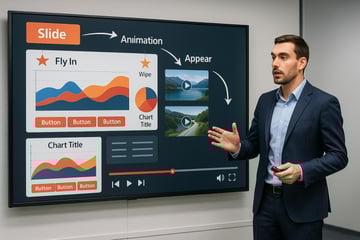
Apply advanced animations and triggers
Automate and manage complex slide shows
Key Topics:
Template design and theme customisation
Slide master management and sectioning
Multimedia: embedding video, audio, hyperlinks
Interactive presentations using action buttons
Automation and slide show settings
Module 1. Customizing Presentations
Module 2. Editing Presentation Masters
Module 3. Drawing Objects
Module 4.Graphics
Module 5. SmartArt
Module 6. Adding Animation Scheme
Module 7. Setting Up the Slide Show
Module 8. Expanding a Slide Show
Module 9. Creating Custom Charts
Module 10. Exporting Outlines and Slides
We’re here to help — reach out anytime.
By submitting this form, you consent to be contacted via email and/or your mobile number regarding your enquiry. You consent to the collection, use, disclosure and processing of your personal data in accordance with our Personal Data Policy.




.png?width=50&name=Artificial%20Intelligence%20(AI).png)


/AdobeStock_230441943.jpeg?width=360&name=AdobeStock_230441943.jpeg)

/AdobeStock_737314510.jpeg?width=360&name=AdobeStock_737314510.jpeg)






/AI%20(5)-1.png?width=360&name=AI%20(5)-1.png)


































































-1.png?width=360&name=Server%20(4)-1.png)






/AI%20(6)-1-1.png?width=360&name=AI%20(6)-1-1.png)
/AI%20(8)-1.png?width=360&name=AI%20(8)-1.png)
-1.png?width=360&name=Automation%20RPA%20(2)-1.png)



















































![VMware vRealize Operations: Install, Configure, Manage [V8.6]](https://www.eservtraininghub.com/hs-fs/hubfs/331_result.jpg?width=360&name=331_result.jpg)
![VMware vRealize Automation - Install, Configure, Manage [V8.3]](https://www.eservtraininghub.com/hs-fs/hubfs/AI-Generated%20Media/Images/Automation%20system%20deploying%20infrastructure%20in%20realtime%20with%20robotic%20arms%20and%20config%20lines%20building%20digital%20components%20Blue%20enterprise%20tech%20setting.jpeg?width=360&name=Automation%20system%20deploying%20infrastructure%20in%20realtime%20with%20robotic%20arms%20and%20config%20lines%20building%20digital%20components%20Blue%20enterprise%20tech%20setting.jpeg)













































![VMware vSphere: Install, Configure, Manage [V8]](https://www.eservtraininghub.com/hs-fs/hubfs/756_result.jpg?width=360&name=756_result.jpg)







![VMware NSX: Install, Configure, Manage [V4.0]](https://www.eservtraininghub.com/hs-fs/hubfs/812_result.jpg?width=360&name=812_result.jpg)