*Important Note : Fees are subject to Singapore's prevailing Goods and Services Tax (GST).
1752192000000
60

Cloud & Infrastructure
Cybersecurity & Risk Management
Artificial Intelligence & Automation
Data Analytics & Data Science
Digital Skills & Office Productivity
Project Management & Agile
Software Development & IT Ops
Critical Core Skills
Maritime
Cloud & Infrastructure
Cybersecurity & Risk Management
Artificial Intelligence & Automation
Data Analytics & Data Science
Digital Skills & Office Productivity
Project Management & Agile
Software Development & IT Ops
Critical Core Skills
Maritime
 Microsoft Productivity Suite
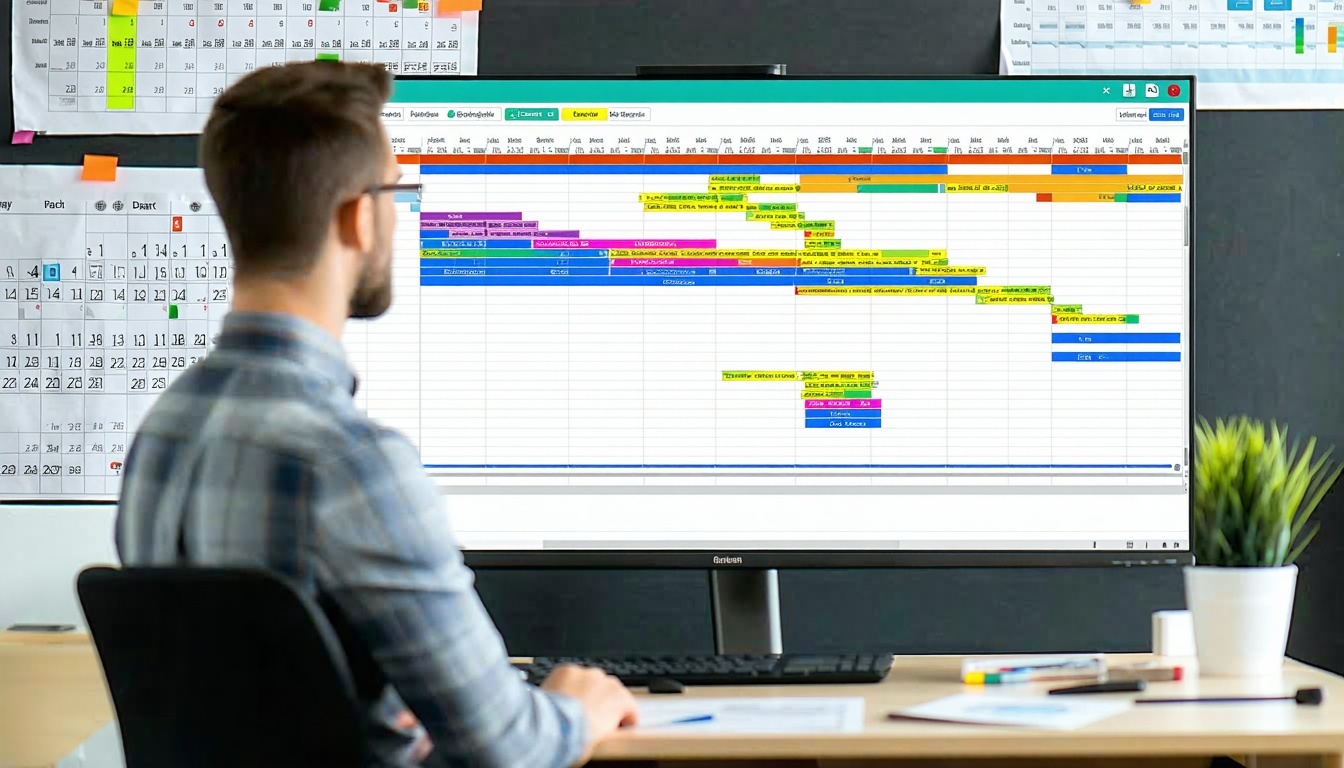
Enrol now and save $0 on your course fee
Effective project planning demands clarity, structure, and precise scheduling. This course introduces participants to project planning using Microsoft Project, aligned with ICDL certification standards. They will learn how to define tasks, allocate resources, and track project timelines using structured, practical exercises.
Learning Outcomes:
Define project objectives and deliverables
Create and manage Gantt charts and dependencies
Allocate resources and track progress in MS Project
Apply planning principles aligned with ICDL standards
Key Topics:
Project planning concepts and terminology
MS Project interface and navigation
Task lists, dependencies, and milestones
Resource allocation and baseline setting
Progress tracking and reporting features
Module 1. Learning Project Basics
Module 2. Working With Tasks
Module 3. Organizing Tasks
Module 4. Scheduling Tasks
Module 5. Working With Other Views
Module 6. Working With Resources
Module 7. Assigning Costs
Module 8. Working With Calendars
Module 9. Using The Team Planner
Module 10. Working With Baselines
Module 11. Tracking Your Progress
Module 12. Evaluating And Distributing Data
We’re here to help — reach out anytime.
By submitting this form, you consent to be contacted via email and/or your mobile number regarding your enquiry. You consent to the collection, use, disclosure and processing of your personal data in accordance with our Personal Data Policy.




.png?width=50&name=Artificial%20Intelligence%20(AI).png)


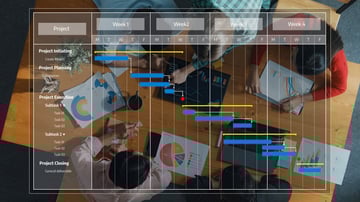
/AdobeStock_230441943.jpeg?width=360&name=AdobeStock_230441943.jpeg)

/AdobeStock_737314510.jpeg?width=360&name=AdobeStock_737314510.jpeg)






/AI%20(5)-1.png?width=360&name=AI%20(5)-1.png)










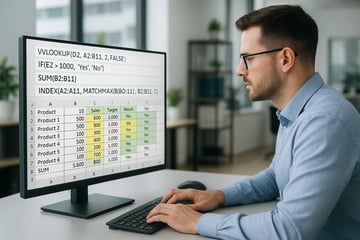

















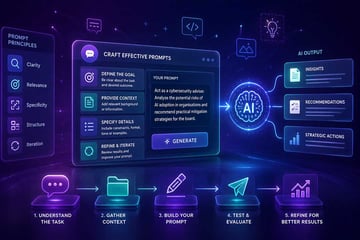







































-1.png?width=360&name=Server%20(4)-1.png)






/AI%20(6)-1-1.png?width=360&name=AI%20(6)-1-1.png)
/AI%20(8)-1.png?width=360&name=AI%20(8)-1.png)
-1.png?width=360&name=Automation%20RPA%20(2)-1.png)


















































![VMware vRealize Operations: Install, Configure, Manage [V8.6]](https://www.eservtraininghub.com/hs-fs/hubfs/331_result.jpg?width=360&name=331_result.jpg)
![VMware vRealize Automation - Install, Configure, Manage [V8.3]](https://www.eservtraininghub.com/hs-fs/hubfs/AI-Generated%20Media/Images/Automation%20system%20deploying%20infrastructure%20in%20realtime%20with%20robotic%20arms%20and%20config%20lines%20building%20digital%20components%20Blue%20enterprise%20tech%20setting.jpeg?width=360&name=Automation%20system%20deploying%20infrastructure%20in%20realtime%20with%20robotic%20arms%20and%20config%20lines%20building%20digital%20components%20Blue%20enterprise%20tech%20setting.jpeg)













































![VMware vSphere: Install, Configure, Manage [V8]](https://www.eservtraininghub.com/hs-fs/hubfs/756_result.jpg?width=360&name=756_result.jpg)







![VMware NSX: Install, Configure, Manage [V4.0]](https://www.eservtraininghub.com/hs-fs/hubfs/812_result.jpg?width=360&name=812_result.jpg)