Presenting complex information requires more than good visuals. This course equips participants with the skills to convey ideas clearly and professionally using Microsoft PowerPoint’s advanced design and presentation tools. They will learn to enhance visual content, apply design consistency, and streamline delivery using powerful built-in tools and shortcuts.
Learning Outcomes:
Apply intermediate formatting and layout tools effectively
Use charts, SmartArt, and multimedia to enrich presentations
Customise slide masters for consistent branding
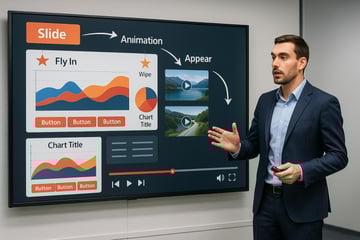
Manage animations, transitions, and object layering
Prepare and deliver slide shows with confidence
Key Topics:
Drawing objects and text box formatting
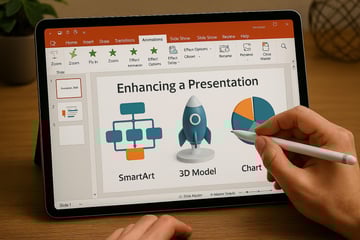
Tables, charts, and SmartArt graphics
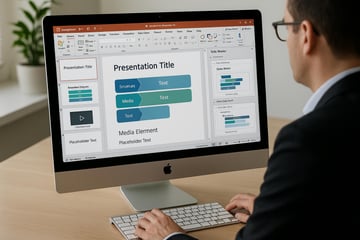
Slide master setup and themes
Multimedia integration and playback settings
Slide show preparation and presenter tools
Module 1. Working with Drawing Objects
- Drawing an Enclosed Object
- Changing the Fill Color of an Object
- Applying a Fill Effect
- Applying Effects
- Drawing a Line
- Formatting Lines
- Creating a Text Box
- Rotating an Object
- Flipping an Objects
- Arranging Objects
- Grouping Objects
- Labs
Module 2. Using SmartArt & Illustrations
- Inserting a SmartArt Object
- Formatting a SmartArt Object Color
- Resizing/Repositioning a SmartArt Object
- Inserting Text into a SmartArt Object
- Formatting Text Within a SmartArt Object
- Adding Shapes to a SmartArt
- Insert Icons
- Inserting 3D Models (from Online Sources)
- Setting 3D Model Views
- Labs
Module 3. Inserting Charts
- Inserting a Chart
- Insert a Chart from Excel
- Deleting Data from the Datasheet
- Entering Data into the Datasheet
- Changing the Chart Type
- Applying a Chart Style and Layout
- Displaying Chart Analysis
- Inserting Pictures
- Formatting your Chart Background
- Labs
Module 4. Creating Custom Charts
- Formatting the Chart Data Markers
- Repositioning the Legend
- Formatting the 3-D View of a Chart
- Exploding a Pie Chart
- Importing Excel Chart to PowerPoint
- Displaying Chart Axes
- Displaying Chart Gridlines
- Formatting Chart Gridlines
- Formatting Chart Axes
- Formatting the Scale of an Axis
- Adding a Chart Title
- Changing the Data Series
- Adding a Drawing Object to a Chart
- Adding Text to a Chart
- Inserting a Data Table
- Labs
Module 5. Adding Transition & Animations Effects
- Adding Slide Transition
- Adding Morph Transition
- Animating Text and Objects
- Setting Animation Timing
- Animating a Chart
- Inserting Sounds and Video
- Changing Multimedia Settings
- Inserting Animated GIF's
- Setting Automatic Slide Timings
- Setting Up a Continuous Loop
- Labs
Module 6. Editing Presentation Masters
- Working with the Slide Master
- Formatting the Slide Master
- Adding Header and Footer Information
- Formatting the Title Master
- Inserting a New Slide Master
- Preserving a Slide Master
- Creating a Custom Layout
- Applying Custom Layout
- Labs





.png?width=50&name=Artificial%20Intelligence%20(AI).png)







/AI%20(5)-1.png?width=360&name=AI%20(5)-1.png)





































































-1.png?width=360&name=Server%20(4)-1.png)






/AI%20(6)-1-1.png?width=360&name=AI%20(6)-1-1.png)
/AI%20(8)-1.png?width=360&name=AI%20(8)-1.png)
-1.png?width=360&name=Automation%20RPA%20(2)-1.png)