*Important Note : Fees are subject to Singapore's prevailing Goods and Services Tax (GST).
1753660800000
60

Cloud & Infrastructure
Cybersecurity & Risk Management
Artificial Intelligence & Automation
Data Analytics & Data Science
Digital Skills & Office Productivity
Project Management & Agile
Software Development & IT Ops
Critical Core Skills
Maritime
Cloud & Infrastructure
Cybersecurity & Risk Management
Artificial Intelligence & Automation
Data Analytics & Data Science
Digital Skills & Office Productivity
Project Management & Agile
Software Development & IT Ops
Critical Core Skills
Maritime
 Microsoft Productivity Suite
Enrol now and save $0 on your course fee
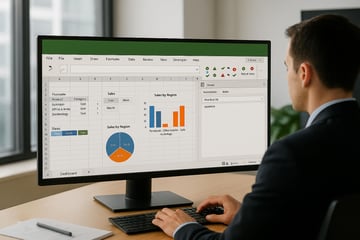
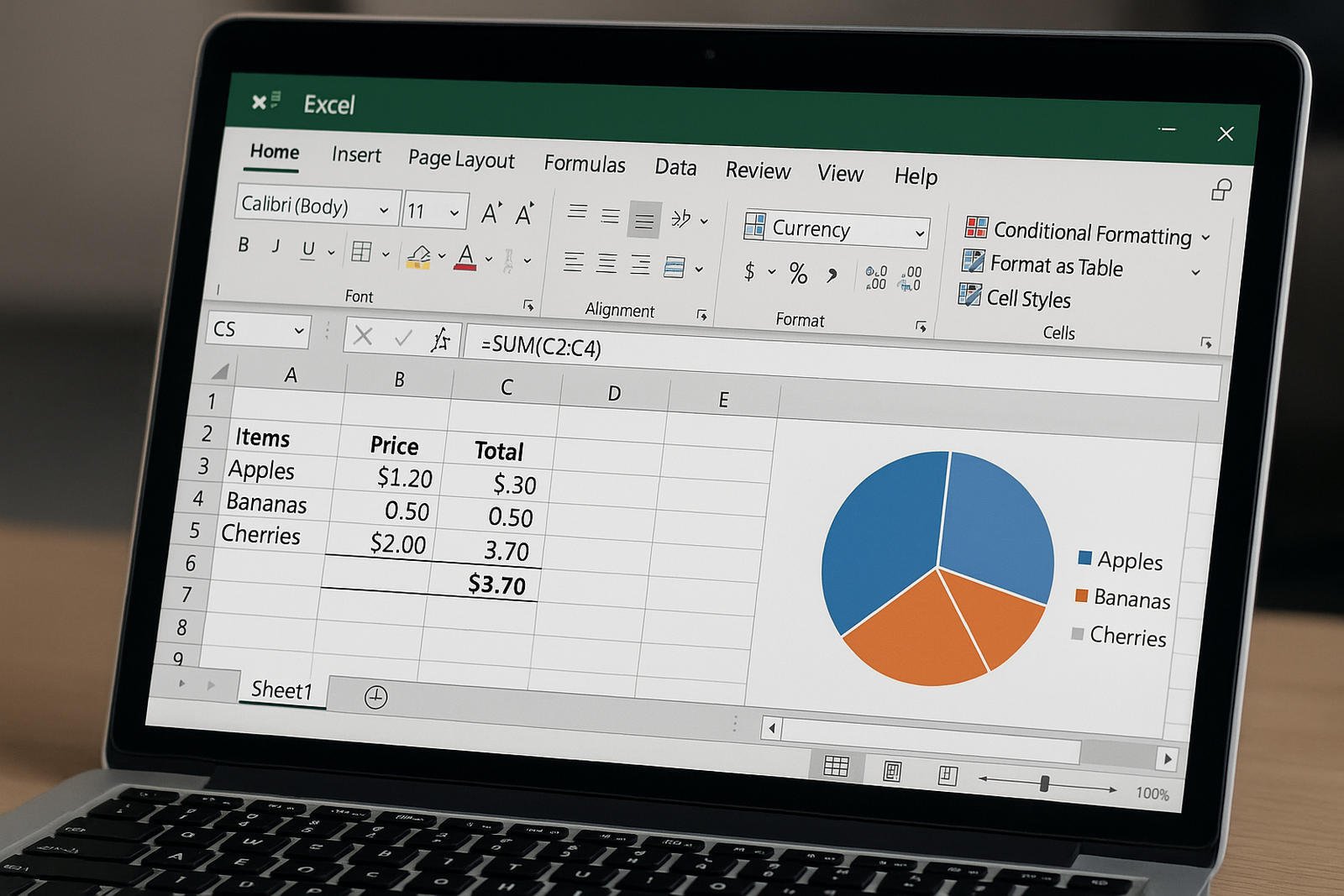
Building a solid foundation in Microsoft Excel is essential for professionals across industries. This two-day course equips participants with the knowledge to perform core spreadsheet functions, format data, create visualisations, and manage workbooks effectively. It introduces both basic and intermediate-level skills to improve productivity and support data-driven decisions.
Learning Outcomes:
Navigate Excel interface and customise its layout
Enter, format, and manage various types of data
Apply formulas, sorting, and filtering to work with datasets
Create and customise charts and tables
Set up worksheets for printing and presentation
Key Topics:
User interface, backstage view, and quick access toolbar
Selection techniques, column/row management, number/text formatting
AutoFilter, table styles, calculated columns, and multi-level sorting
Basic formulas, error checking, and function use
Data management tools and chart creation (2D/3D)
Page setup, print areas, headers, and scaling
Lesson 1: Getting Started with Excel
Lesson 2: Working with Workbook and Worksheets
Lesson 3: Formatting the Worksheet
Lesson 4: Formulas and Functions
Lesson 5: Data Management with Tables
Lesson 6: Charts
Lesson 7: Preparing outputs
We’re here to help — reach out anytime.
By submitting this form, you consent to be contacted via email and/or your mobile number regarding your enquiry. You consent to the collection, use, disclosure and processing of your personal data in accordance with our Personal Data Policy.




.png?width=50&name=Artificial%20Intelligence%20(AI).png)


/AdobeStock_230441943.jpeg?width=360&name=AdobeStock_230441943.jpeg)

/AdobeStock_737314510.jpeg?width=360&name=AdobeStock_737314510.jpeg)







/AI%20(5)-1.png?width=360&name=AI%20(5)-1.png)






































































-1.png?width=360&name=Server%20(4)-1.png)






/AI%20(6)-1-1.png?width=360&name=AI%20(6)-1-1.png)
/AI%20(8)-1.png?width=360&name=AI%20(8)-1.png)
-1.png?width=360&name=Automation%20RPA%20(2)-1.png)















































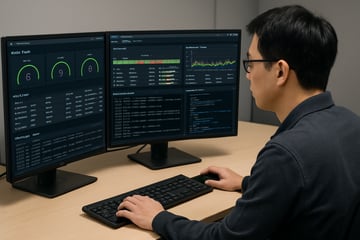




![VMware vRealize Operations: Install, Configure, Manage [V8.6]](https://www.eservtraininghub.com/hs-fs/hubfs/331_result.jpg?width=360&name=331_result.jpg)
![VMware vRealize Automation - Install, Configure, Manage [V8.3]](https://www.eservtraininghub.com/hs-fs/hubfs/AI-Generated%20Media/Images/Automation%20system%20deploying%20infrastructure%20in%20realtime%20with%20robotic%20arms%20and%20config%20lines%20building%20digital%20components%20Blue%20enterprise%20tech%20setting.jpeg?width=360&name=Automation%20system%20deploying%20infrastructure%20in%20realtime%20with%20robotic%20arms%20and%20config%20lines%20building%20digital%20components%20Blue%20enterprise%20tech%20setting.jpeg)












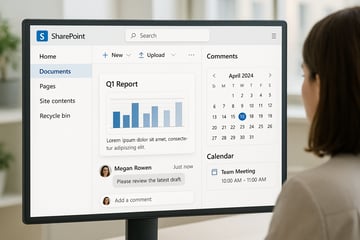
























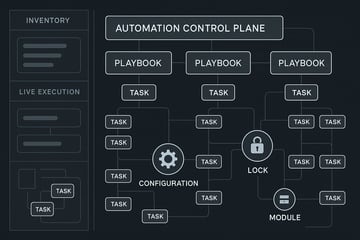











![VMware vSphere: Install, Configure, Manage [V8]](https://www.eservtraininghub.com/hs-fs/hubfs/756_result.jpg?width=360&name=756_result.jpg)









![VMware NSX: Install, Configure, Manage [V4.0]](https://www.eservtraininghub.com/hs-fs/hubfs/812_result.jpg?width=360&name=812_result.jpg)